
No matching topics. Try a shorter term, or clear your search.
About this guide
About this guide
This manual explains how to configure and operate the Weighbridge Sale-Billing Module, the desktop application used at the plant weighbridge to record vehicle entry (Sale In), generate sale invoices (Sale Out), and transmit weighment data to the Uttarakhand Directorate of Geology & Mining (DGM) eRavanna portal (eravanna.ukmdtss.in).
It covers, in the order a new installation should be configured:
- Registering the weighbridge on the government eRavanna portal
- Connecting the desktop module to that portal via the Weighbridge API
- Configuring the CCTV cameras and the new RFID reader used to identify vehicles at Sale Out
- Setting up masters (GST, Buyer, Material, Location, Tax)
- Day-to-day use of Sale In and Sale Out
- Reading API error codes when a weighment is rejected
Audience: licensee/plant operators, weighbridge operators, and IT staff installing or supporting the module.
Software: Sale-Billing Module (Positron Software Technologies Pvt. Ltd.) and the eRavanna web portal.
Back to top ↑About this guide
Quick start
- Register the physical weighbridge on the eRavanna portal and record its Weighbridge ID.
- Connect the desktop module using the Weighbridge API credentials.
- Configure and test the CP Plus cameras, RFID reader, and weighbridge indicator.
- Create GST, buyer, material, location, and tax master records.
- Complete Sale In, then Sale Out, and confirm successful API submission before releasing the vehicle.
Getting started
1. Prerequisites
Before starting, confirm the following are available:
| Item | Details |
|---|---|
| eRavanna portal credentials | Licensee login (Portal Id / Username) issued by DGM Uttarakhand |
| Licensee ID | e.g. SC66000068, printed on the portal Profile / Weighbridge screens |
| Weighbridge hardware | RS-232/USB serial weighbridge indicator connected to the PC |
| CCTV cameras | CP Plus DVR/NVR with two channels (front and back of vehicle), on the same LAN as the PC |
| RFID reader | Fixed/handheld UHF RFID reader (e.g. model SM108) reachable over TCP/IP on the same LAN |
| Internet connectivity | Required for OTP login and for submitting weighments to the eRavanna API |
| Registered mobile number | Linked to the portal login, used to receive OTP |
Complete the setup in this order: Portal Login → Profile → Register Weighbridge → Weighbridge API Settings → Camera Settings → RFID Settings → Port Settings → Masters (GST/Buyer/Material/Tax) → Sale In/Sale Out.
Back to top ↑Portal configuration
2. Logging Into the eRavanna Portal
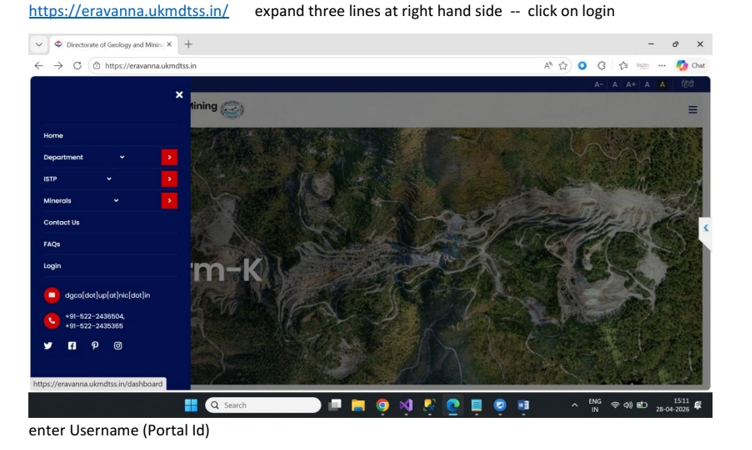
- Open a browser and go to https://eravanna.ukmdtss.in/
- Click the three horizontal lines (menu icon) at the top right to expand the navigation panel.
- Click Login in the expanded menu.
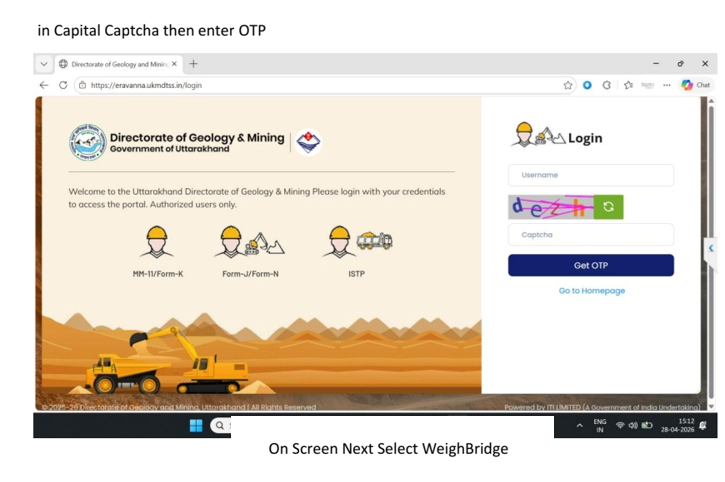
- On the Login screen, enter your Username (Portal Id).
- Enter the Captcha shown in capital letters, exactly as displayed.
- Click Get OTP and enter the OTP received on your registered mobile number to sign in.
Portal configuration
3. Setting Up Your Profile
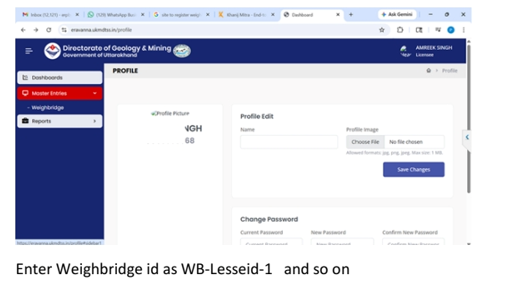
- After login, open Profile from the left navigation panel.
- Under Profile Edit, optionally upload a Profile Image (jpg/png/jpeg, max 1 MB) and enter your Name.
- Click Save Changes.
Weighbridge ID naming convention
When a Weighbridge ID is required anywhere on the portal, use the pattern:
WB-<LesseeId>-1, WB-<LesseeId>-2, WB-<LesseeId>-3, ...For example, if the Lessee ID is Lesseeid, the first weighbridge is WB-Lesseeid-1; a second weighbridge at the same site is WB-Lesseeid-2, and so on.
Portal configuration
4. Registering the Weighbridge on the Portal
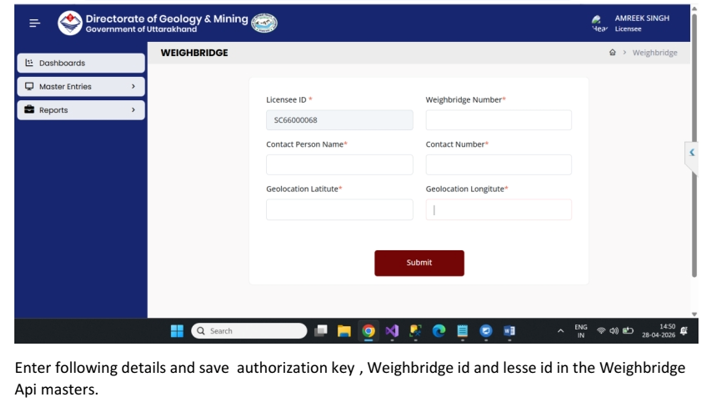
- From the left menu, expand Master Entries → Weighbridge, then open the Weighbridge create screen (/weighbridge/create).
- Licensee ID is pre-filled (e.g. SC66000068) — verify it matches your licence.
- Enter the Weighbridge Number (use the WB-<LesseeId>-1 convention described in Section 3).
- Enter Contact Person Name and Contact Number for the site.
- Enter Geolocation Latitude and Geolocation Longitude of the weighbridge (obtain from a GPS app or map service at the physical location).
- Click Submit.
Repeat this step once per physical weighbridge at the site, incrementing the Weighbridge Number suffix (-1, -2, ...).
Portal configuration
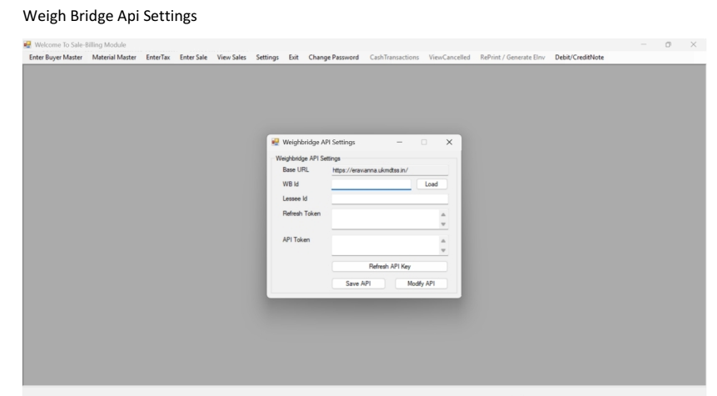
5. Linking the Desktop Module to the Portal (Weighbridge API Settings)
Once the weighbridge is registered on the portal (Section 4), connect the desktop Sale-Billing Module to it:
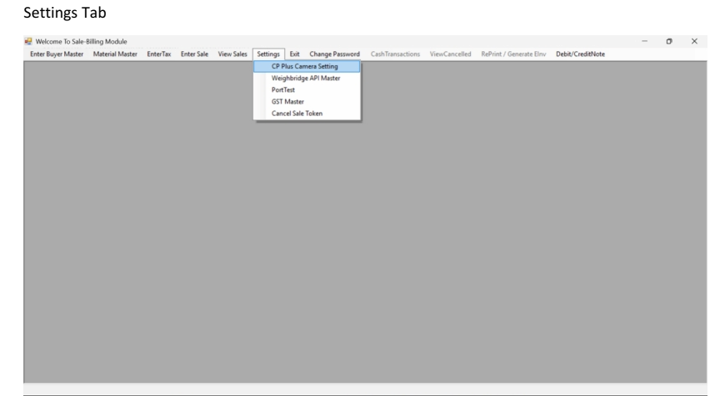
- In the Sale-Billing Module, open Settings → Weighbridge API Master.
- Base URL is pre-set to https://eravanna.ukmdtss.in/
- Enter the WB Id (the Weighbridge Number saved in Section 4, e.g. WB-Lesseeid-1) and click Load to fetch its registration from the portal.
- Confirm the Lessee Id that populates automatically.
- Enter the Authorization Key issued by the portal, along with the Refresh Token and API Token fields.
- Click Save API for a first-time setup, or Modify API to update existing credentials.
- Use Refresh API Key if the API Token expires and needs to be renewed without re-entering all details.
Hardware configuration
6. CP Plus Camera Settings
The module streams two live camera feeds (front and back of the vehicle) into the Sale In screen.
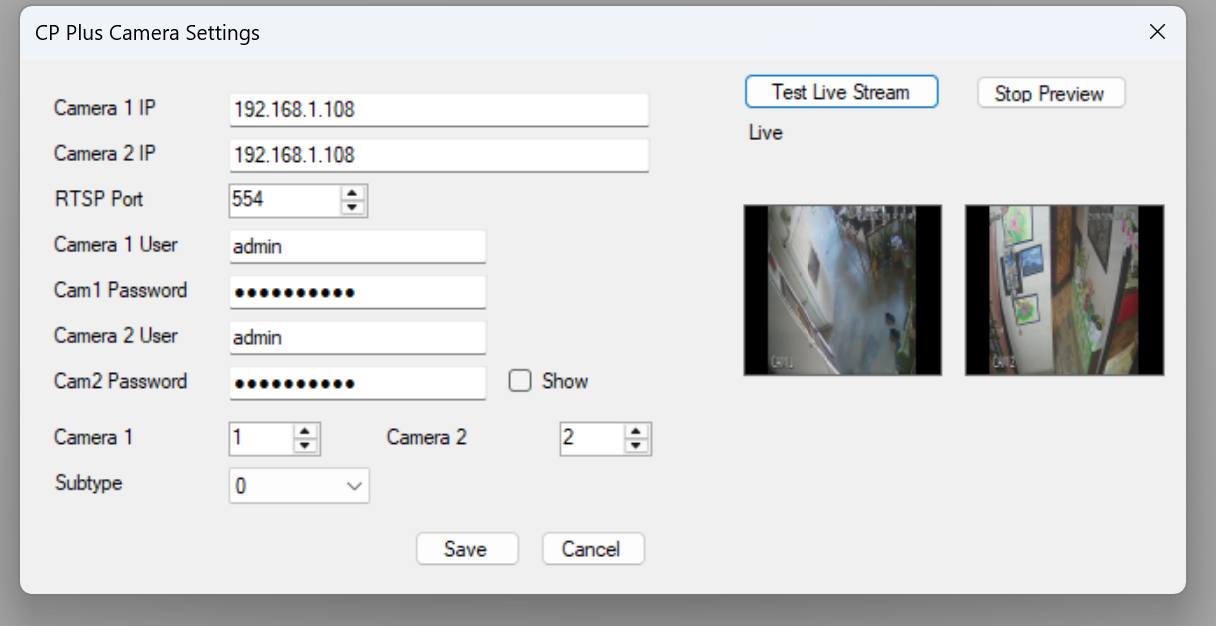
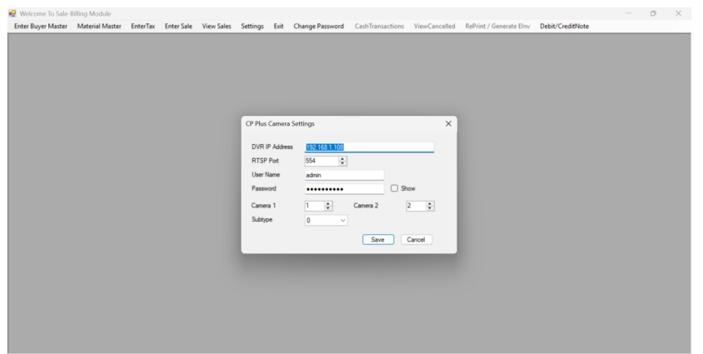
- Open Settings → CP Plus Camera Setting.
- Enter the Camera 1 IP and Camera 2 IP addresses of the CP Plus cameras/DVR (e.g. 192.168.1.108 for both if they share one recorder).
- Enter the RTSP Port (default 554).
- Enter Camera 1 User and Cam1 Password for the front camera, and Camera 2 User and Cam2 Password for the back camera. Tick Show to verify a password as typed.
- Set Camera 1 and Camera 2 to the DVR channel numbers for the front and back views (e.g. 1 and 2).
- Set Subtype (stream profile, typically 0 for the main stream).
- Click Test Live Stream to preview both feeds live before saving; click Stop Preview to end the test.
- Click Save (or Cancel to discard changes).
Each camera now has its own IP address and login, so the two feeds can come from separate cameras or DVR channels. Once saved, the two feeds appear as Camera 1/Front and Camera 2/Back on the Sale In screen.
Hardware configuration
7. RFID Reader Settings
The module can auto-capture a vehicle's RFID tag during Sale Out, in addition to the camera snapshots. Configure the reader right after Camera Settings (Section 6):
- Open Settings → RFID Settings (listed just below CP Plus Camera Setting in the Settings menu).
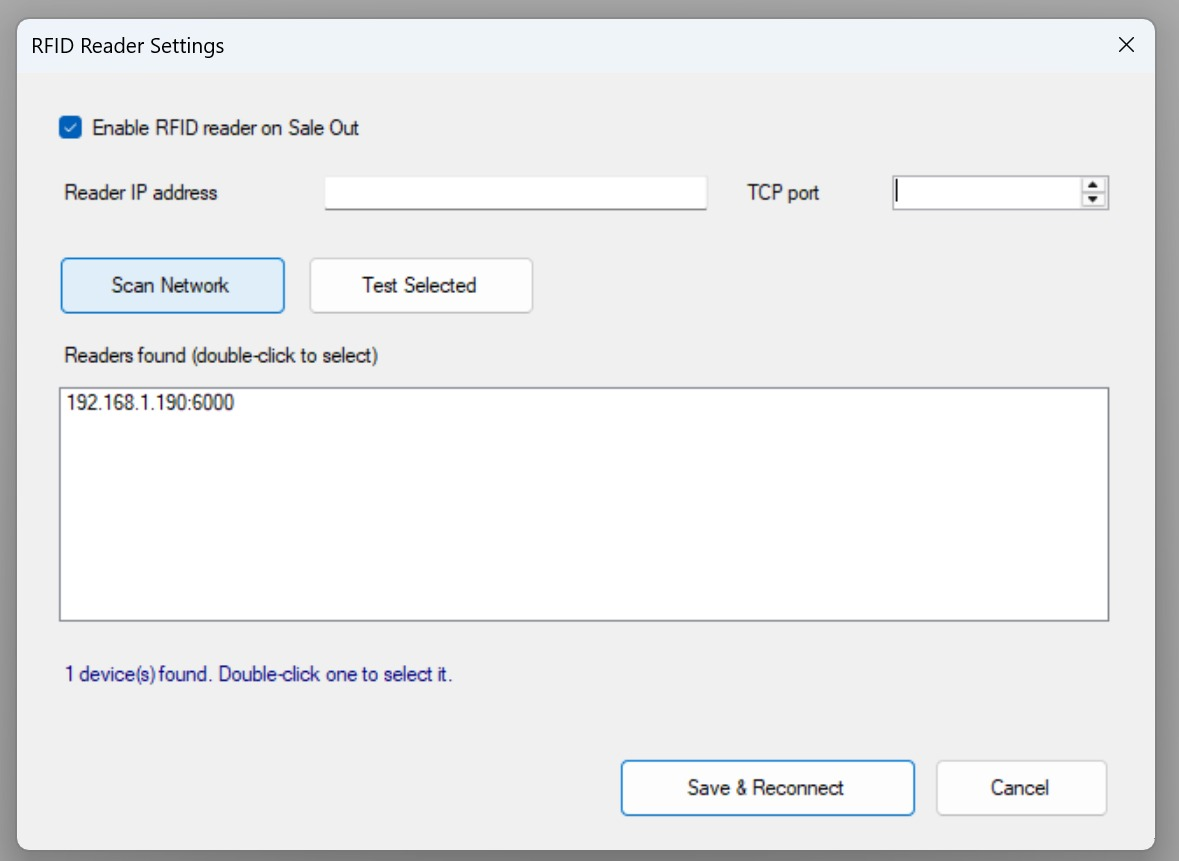
- Tick Enable RFID reader on Sale Out to turn the feature on.
- Click Scan Network to auto-discover readers on the local network.
- Discovered devices appear under Readers found, listed as <IP address>:<port> (e.g. 192.168.1.190:6000).
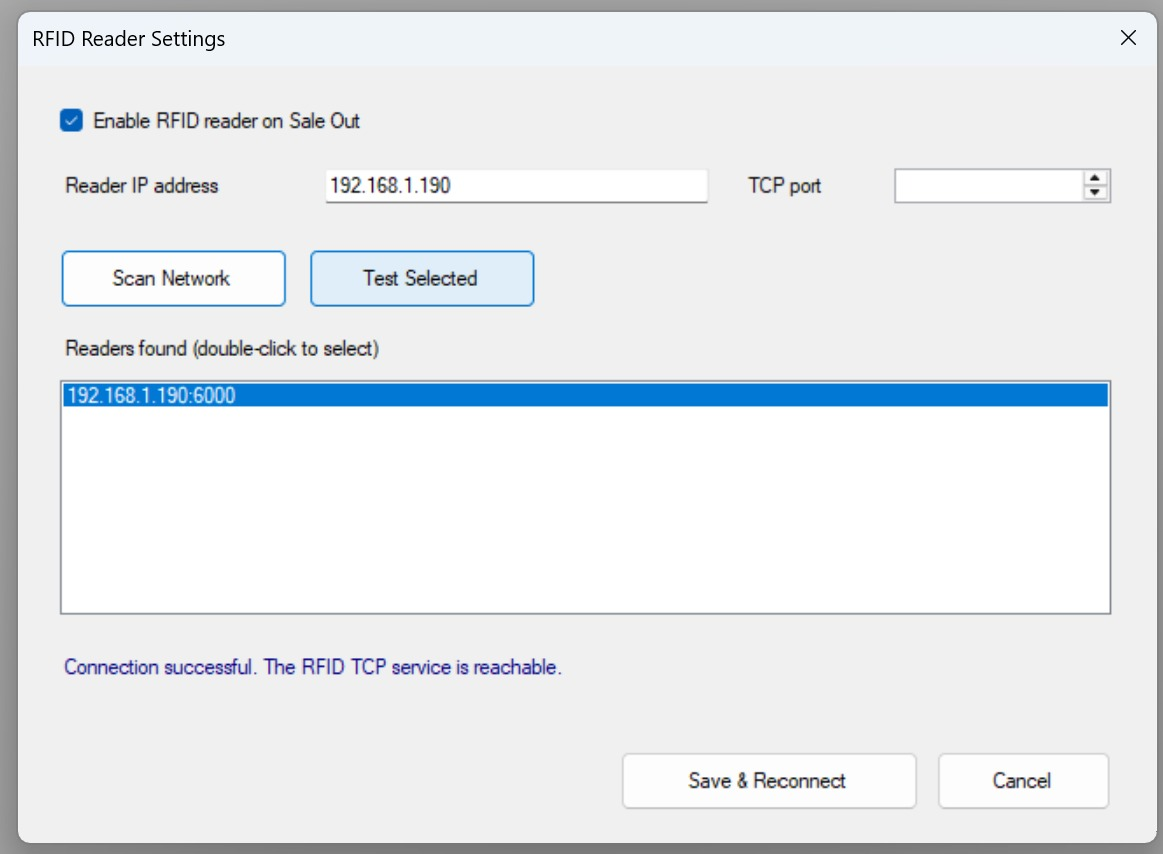
- Double-click the correct reader in the list to select it — this fills in the Reader IP address field automatically.
- Alternatively, type the Reader IP address and TCP port manually if the reader is not discovered by the scan.
- Click Test Selected to verify connectivity. A confirmation message — "Connection successful. The RFID TCP service is reachable." — appears once the test succeeds.
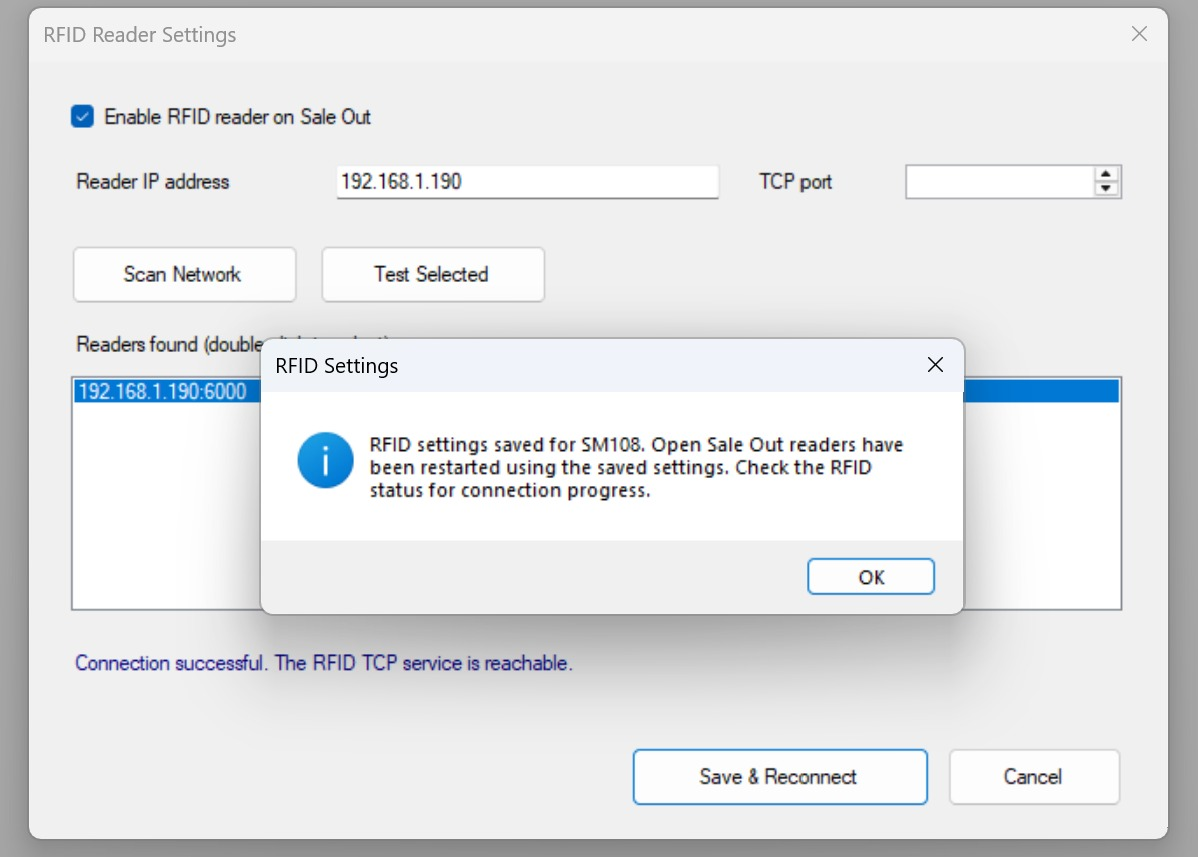
- Click Save & Reconnect.
- A confirmation dialog appears: "RFID settings saved for [reader model]. Open Sale Out readers have been restarted using the saved settings. Check the RFID status for connection progress." Click OK.
Using RFID on Sale Out
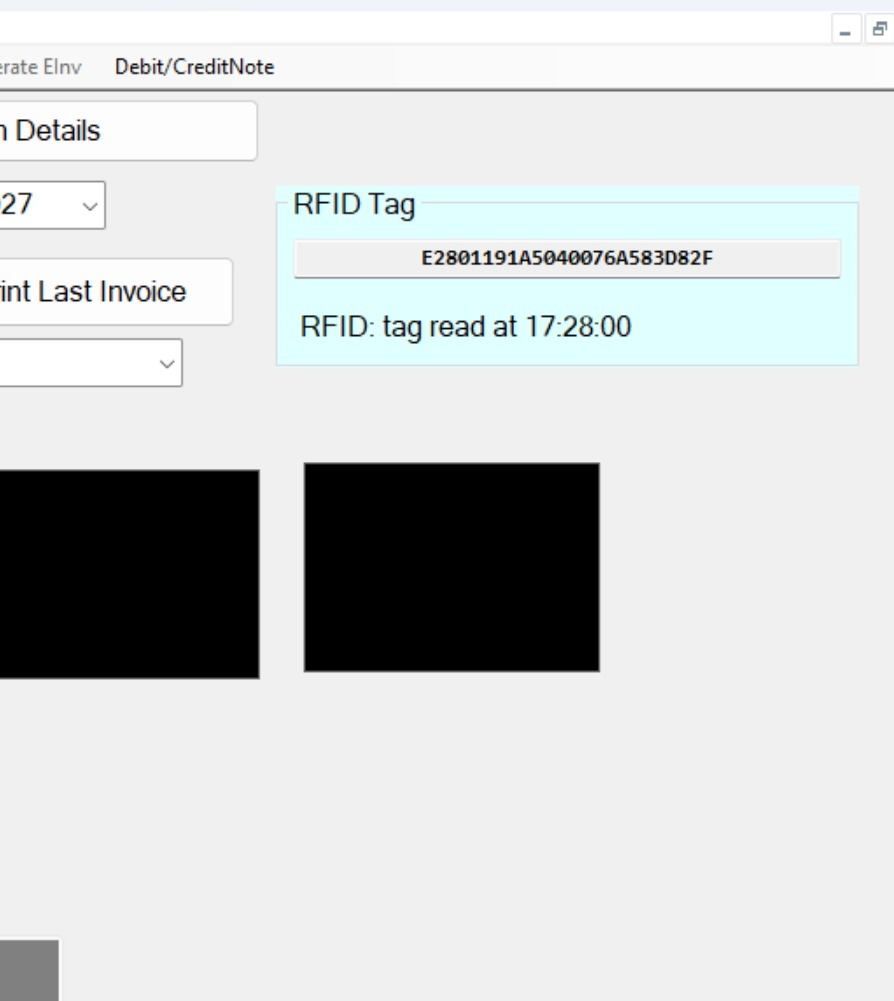
Once configured and enabled, the Sale Out screen shows an RFID Tag panel above the camera previews. When a tagged vehicle is read, the panel displays the tag's unique ID (e.g. E2801191A5040076A583D82F) and the time it was read (e.g. "RFID: tag read at 17:28:00"), letting the operator confirm the correct vehicle before saving the sale.
RFID Settings — screen walkthrough

Hardware configuration
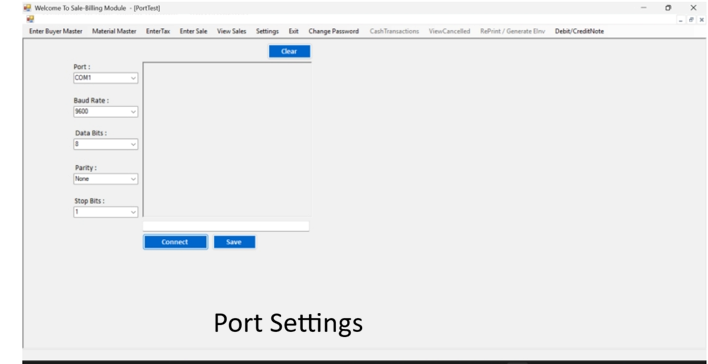
8. Port Settings (Weighbridge Indicator)
The weighbridge indicator communicates with the PC over a serial (COM) port and must be configured once:
- Open Settings → PortTest.
- Select the Port (COM number) the indicator is connected to.
- Set Baud Rate, Data Bits, Parity, and Stop Bits to match the indicator's configuration (commonly 9600, 8, None, 1).
- Click Connect to test the link — live weight readings should appear in the output panel.
- Click Save once the correct weight is confirmed.
Master data setup
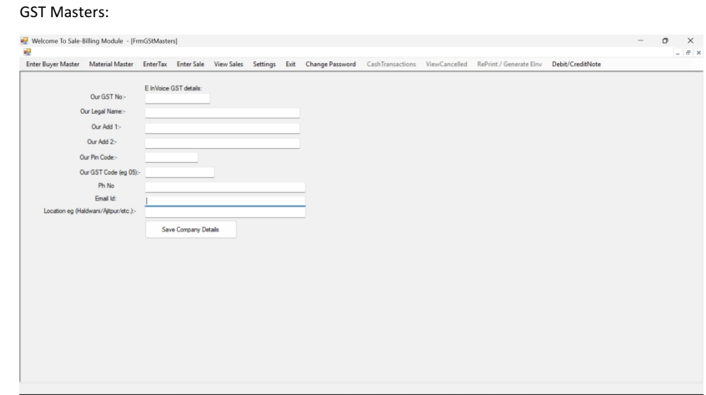
9. GST Master
Enter the company's own GST details once, used on every generated invoice and for e-Invoice generation:
- Open Settings → GST Master.
- Fill in Our GST No., Our Legal Name, Our Add 1 / Add 2, Our Pin Code, and Our GST Code (e.g. 05).
- Enter Ph No., Email Id, and Location (e.g. Haldwani, Ajitpur).
- Click Save Company Details.
Master data setup
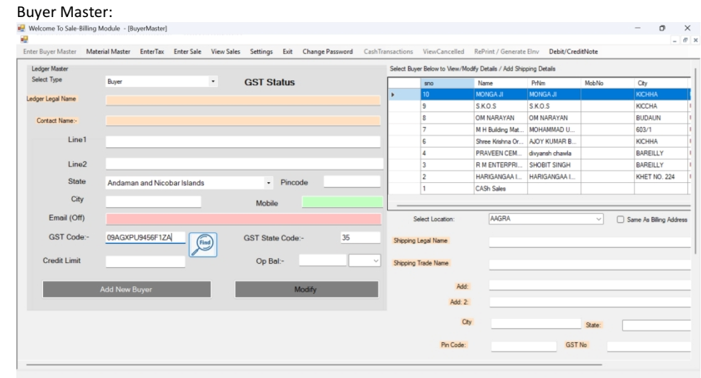
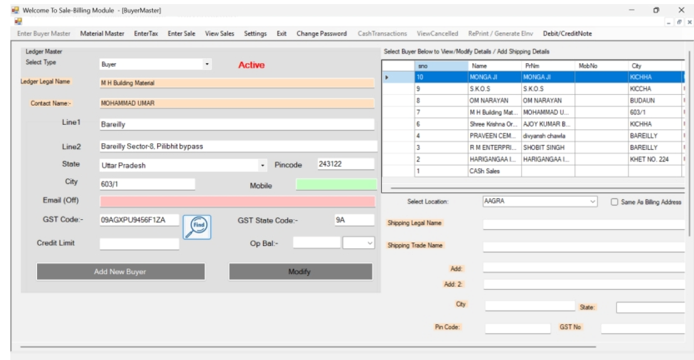
10. Buyer Master
- Open Enter Buyer Master, and select Type = Buyer (or Ledger for non-buyer accounts).
- Enter Ledger Legal Name, Contact Name, address Line 1 / Line 2, State, City, and Pincode.
- Enter Mobile and Email (Off).
- Enter the GST Code; click the Find (magnifier) icon to auto-fetch GST State Code and validate the GST status — the label above switches between GST Status (unverified) and Active (verified).
- Set Credit Limit and Opening Balance (Op Bal) if applicable.
- Optionally fill Shipping Legal Name / Trade Name and shipping address if different from the billing address, or tick Same As Billing Address. Choose the Select Location for the sale (must match a location saved in Material Master, Section 11).
- Click Add New Buyer for a new ledger, or Modify to update a buyer selected from the list on the right.
Master data setup
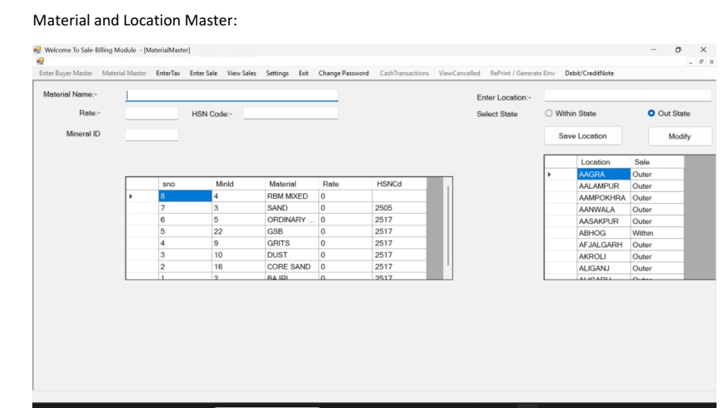
11. Material and Location Master
Material Master (left panel):
- Open Material Master.
- Enter Material Name, Rate, and HSN Code.
- Enter the Mineral ID as issued by the department for that material.
- The saved materials list (Mineral ID, Material, Rate, HSN Code) appears in the grid below.
Location Master (right panel):
- Enter the Location name (e.g. a village/town the buyer ships to).
- Choose Select State: Within State or Out State, depending on the buyer's location relative to the plant.
- Click Save Location, or Modify to update an existing one. The saved list shows each Location and its Sale type (Within/Outer).
Master data setup
12. Tax Master
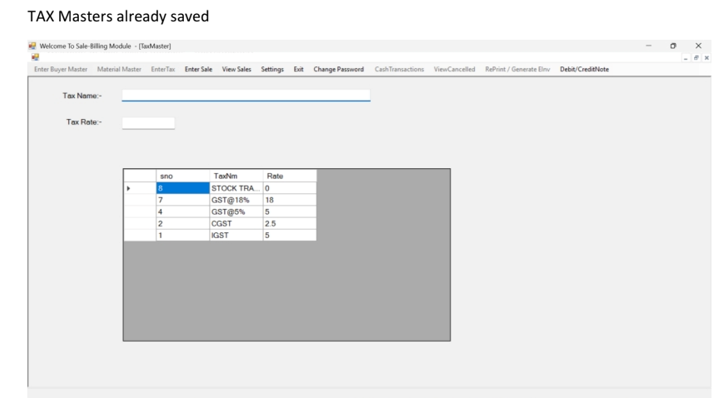
- Open EnterTax.
- Enter Tax Name (e.g. IGST, CGST, GST@5%, GST@18%, STOCK TRANSFER) and its Tax Rate.
- Saved taxes appear in the grid and become selectable on the Sale Out screen (Section 14).
See the Tax Master screenshot below for the saved tax grid.
Daily operations
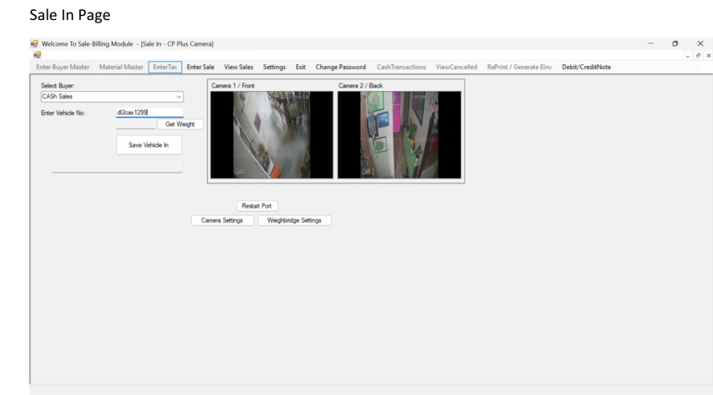
13. Sale In (Vehicle Entry)
Record the empty (tare) or laden-in weight of a vehicle as it enters the plant:
- Open EnterSale → Sale In.
- Select Buyer from the dropdown (or CASh Sales for a cash transaction).
- Enter Vehicle No. (registration number).
- Click Get Weight to pull the live reading from the weighbridge indicator (configured in Section 8).
- Confirm the vehicle in the Camera 1/Front and Camera 2/Back previews.
- Click Save Vehicle In.
Use Camera Settings / Weighbridge Settings buttons on this screen to jump back to Sections 6 and 8 respectively if a camera feed or the weight reading looks wrong. Restart Port reconnects the weighbridge serial link without leaving the screen.
Daily operations
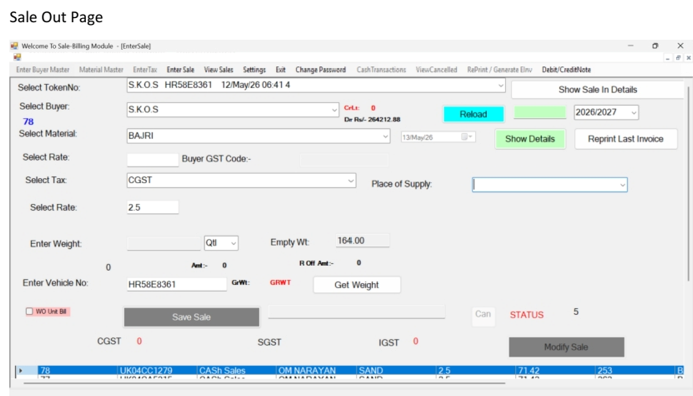
14. Sale Out (Billing)
- Open EnterSale. Select TokenNo for the vehicle already recorded in Sale In (shows buyer, vehicle number and Sale In time).
- Select Buyer, Select Material, Select Rate, Select Tax, and Place of Supply.
- If RFID is enabled (Section 7), confirm the vehicle against the RFID Tag panel before proceeding.
- Click Get Weight to capture the gross weight (GrWt); Empty Wt is pulled from the matching Sale In record.
- Review the calculated Amt, R Off Amt, and tax breakup (CGST / SGST / IGST).
- Click Save Sale. Use Modify Sale to correct a saved-but-uninvoiced entry, Reprint Last Invoice to reprint, and Show Sale In Details / Show Details to review linked records.
- Click Reload to clear the screen and load the next pending token.
Integration and support
15. Weighment Submission to the eRavanna API
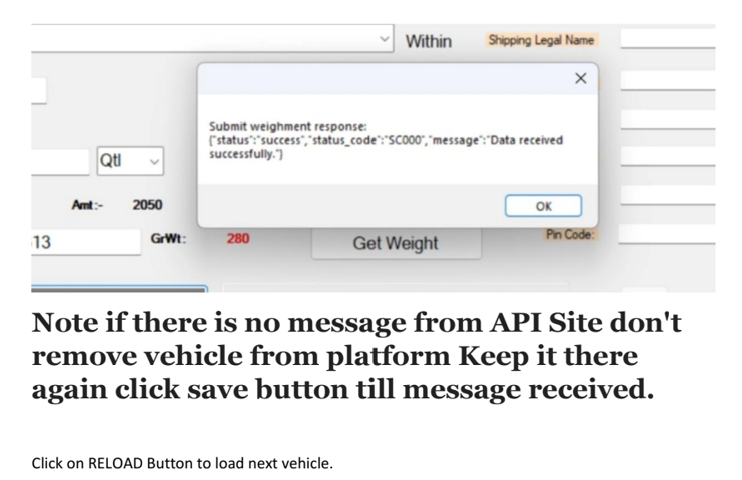
When Save Sale is clicked, the module submits the weighment to the eRavanna API using the credentials saved in Section 5. A Submit weighment response popup confirms the result, e.g.:
{"status":"success","status_code":"SC000","message":"Data received successfully."}Once SC000 – Data received successfully is confirmed, click Reload to load the next vehicle.
Integration and support
16. API Error Codes
| Code | Reason |
|---|---|
| ER001 | Validation failure |
| ER002 | Invalid API token |
| ER003 | Token expired |
| ER004 | Gross ≤ Tare weight |
| ER005 | Future timestamp |
| ER006 | Timestamp older than 10 minutes |
| ER007 | Weighbridge not mapped |
| ER008 | Vehicle not found |
| ER009 | Vehicle not approved |
| ER010 | RC expired |
| ER011 | Duplicate weighment within 3 hours |
| ER012 | Duplicate weighment slip number |
| ER013 | Something went wrong & server error |
| SC000 | Data received successfully |
Troubleshooting tips:
- ER002 / ER003 — go to Section 5 and use Refresh API Key, then Save API.
- ER004 — recheck the weighbridge indicator and Port Settings (Section 8); the gross weight must exceed the tare/empty weight.
- ER007 / ER008 / ER009 / ER010 — verify the weighbridge and vehicle are correctly registered/approved on the eRavanna portal (Sections 2–4).
- ER011 / ER012 — wait for the duplicate window to clear, or confirm the vehicle was not already weighed.
Integration and support
17. Support
Positron Software Technologies Pvt. Ltd.
Back to top ↑